A glossary is a powerful way to make complex information easier to understand. However, many websites cover multiple topics, audiences, or areas of expertise, and a single glossary can quickly become difficult to navigate.
Creating separate glossaries for different subjects allows you to organize knowledge more effectively and provide visitors with a clearer, more focused browsing experience.

Organizing Different Topics With the WordPress Glossary Plugin
The WordPress Glossary Plugin allows you to create a structured glossary system where terms can be grouped into separate categories and displayed in different sections of your website.
Instead of creating one large collection of definitions, you can build multiple focused glossaries that match the structure of your content.
This approach is especially useful for websites that cover several areas at once. For example, a technology company may need separate glossaries for marketing concepts, software development terms, analytics terminology, and product-related definitions.
By dividing terms into dedicated glossary sections, visitors can quickly find the information that is relevant to them without browsing through unrelated definitions.
October 2026 Offer – For a Limited Time Only:
Get WordPress Tooltip Glossary Plugin for 15% off! Don’t miss out!
Why Create Multiple Glossaries Instead of One?
As websites grow, their content often becomes more specialized. New products, services, courses, or content categories may introduce completely different terminology.
A single glossary containing every possible term can become overwhelming. Visitors looking for information about one specific topic may have to search through dozens of unrelated entries.
Multiple glossaries solve this problem by creating focused knowledge areas.
For example, a business website could have:
- A Marketing Glossary explaining advertising and business terms.
- A Development Glossary covering programming concepts.
- An Analytics Glossary explaining data-related terminology.
Each section becomes easier to explore while still remaining part of the same website.
Examples of Websites That Can Benefit From Multiple Glossaries
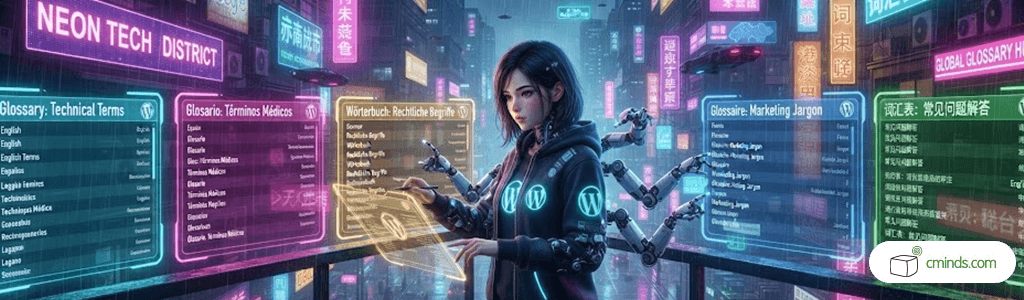
Different types of websites can use separate glossaries to improve content organization.
SaaS and Technology Websites
Software companies often publish content for different audiences. Product managers, developers, marketers, and customers may all interact with the same website but require different types of information.
Separate glossaries allow each audience to access terminology that is relevant to their needs.
For example, a SaaS website could create dedicated glossary sections for:
- Technical concepts.
- Industry terminology.
- Product features.
- Business and marketing terms.
This makes educational content easier to understand while keeping the website organized.
Educational Platforms
Online learning websites often contain multiple courses or subjects, each with its own vocabulary.
A learning platform can create separate glossaries for:
- Different courses.
- Academic subjects.
- Language programs.
- Training materials.
Students can focus on the terminology connected to their current learning goals instead of searching through a general glossary.
Professional and Industry Websites
Many industries use specialized language that may be unfamiliar to visitors. Websites in fields such as finance, healthcare, law, and engineering often need to explain complex concepts.
Separate glossaries make it possible to create targeted resources for different areas of expertise while keeping information accessible.
Create Multiple WordPress Glossaries in Minutes
Creating a More Personalized Glossary Experience

Multiple glossaries are not only useful for organization. They can also help create different experiences for visitors.
Each glossary category can have its own settings and appearance. For example, different tooltip styles can help users visually distinguish between types of information.
A website could use different tooltip designs for:
- Educational definitions.
- Technical explanations.
- Industry-specific terminology.
These visual differences make it easier for visitors to understand what type of information they are viewing.
Controlling Glossary Terms Across Your Website
Different pages may require different glossary behavior. Some articles may need definitions from several categories, while others may focus on one specific topic.
Category-based controls make it possible to decide which terms should appear on individual pages. You can choose to display only selected glossary terms or exclude certain categories when needed.
For example, a detailed analytics article may include terms from multiple fields, but the website owner may want to highlight only analytics-related definitions.
This level of control helps create cleaner pages and more relevant user experiences.
Building a Structured Knowledge Base
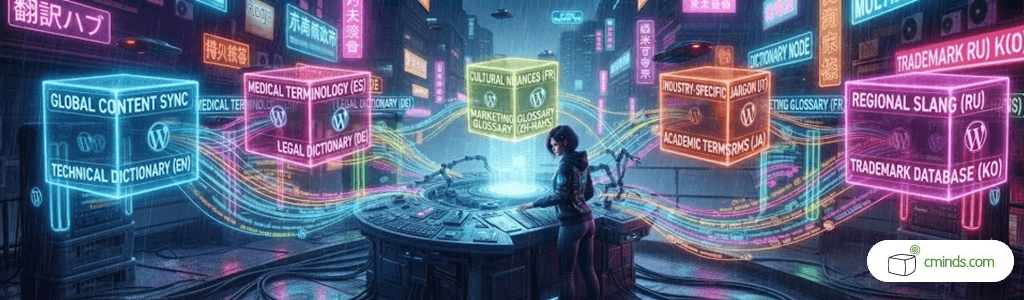
A glossary can become much more than a simple list of definitions. When properly organized, it becomes a valuable knowledge resource that helps visitors explore your website and better understand your content.
Multiple glossaries allow you to create a structured information system where each topic has its own dedicated space. This improves navigation, reduces confusion, and makes complex subjects easier to learn.
With the WordPress Glossary Plugin, website owners can create categorized glossary sections, customize tooltip behavior, and build a more organized knowledge base directly inside WordPress.
Whether you are creating an educational platform, a business website, or a resource library, separate glossaries can help transform scattered information into an accessible and user-friendly experience.
To learn how to create multiple separate glossaries on the same WordPress website, check out our detailed use case guide: